How to Check and Update Drivers on Your PC (Without Losing an Afternoon to It)
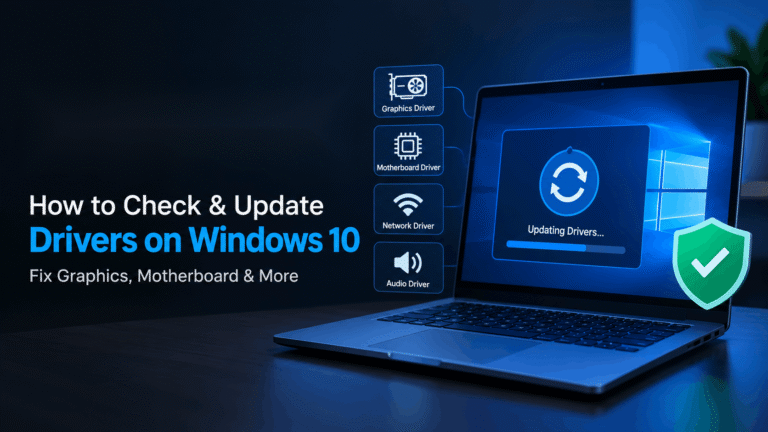
If your PC has ever frozen mid game, dropped its Wi Fi connection for no reason, or refused to recognize a printer you just plugged in, there’s a decent chance an outdated or corrupted driver is the culprit. Drivers are the small pieces of software that let Windows talk to your hardware, and when they fall out of date, the symptoms can look like almost anything else. That makes them easy to overlook and, once you know what to check, easy to fix.
This guide walks through how to check drivers on a PC, what actually causes driver problems in the first place, and how to update drivers on PC hardware safely, including where a tool like Driver Booster fits into the process.
Why Drivers Quietly Cause So Many Problems
Every component in your machine, from the graphics card to the keyboard, relies on a driver to communicate with the operating system. When a manufacturer releases a new GPU, for instance, Windows doesn’t automatically know how to squeeze full performance out of it. The driver is the translator that makes that possible.
The trouble is that drivers age. A driver written for last year’s version of Windows might not play well with this year’s update. A graphics driver that worked fine for months can suddenly cause stuttering after a game patch changes how it uses memory. And because Windows Update only pushes basic, stability focused drivers rather than the latest performance builds, plenty of PCs are running hardware well below its actual capability without anyone realizing it.
How to Check Drivers on Your PC
Before updating anything, it helps to know what you’re working with. Here are the built in ways to check drivers on a PC without installing extra software.
Using Device Manager
Device Manager is the quickest built in option:
- Right click the Start button and select Device Manager.
- Expand any category, such as Display Adapters or Network Adapters.
- Right click the specific hardware and choose Properties.
- Open the Driver tab to see the version, date, and provider.
If the driver date is more than a year or two old, or if there’s a yellow warning triangle next to the device, that’s a strong signal something needs attention.
Checking Through Windows Update
Windows occasionally bundles driver updates into its regular update cycle. Go to Settings, then Windows Update, then Advanced Options, and look under Optional Updates for a Driver Updates section. It won’t catch everything, but it’s a decent first pass, especially for common peripherals like mice, printers, and audio devices.
Using the Command Line
For anyone comfortable with a bit of technical poking around, opening Command Prompt and typing driverquery will list every driver currently installed, along with its type and link date. It’s not the friendliest output to read, but it’s a fast way to get a full inventory in one shot.
What Is Driver Booster
Manually hunting down manufacturer websites for every component gets old fast, especially on a PC with a graphics card from one brand, a motherboard from another, and peripherals from half a dozen more. This is where Driver Booster comes in, and it’s worth answering the question “What Is Driver Booster” in a bit more detail before deciding whether it belongs in your toolkit.
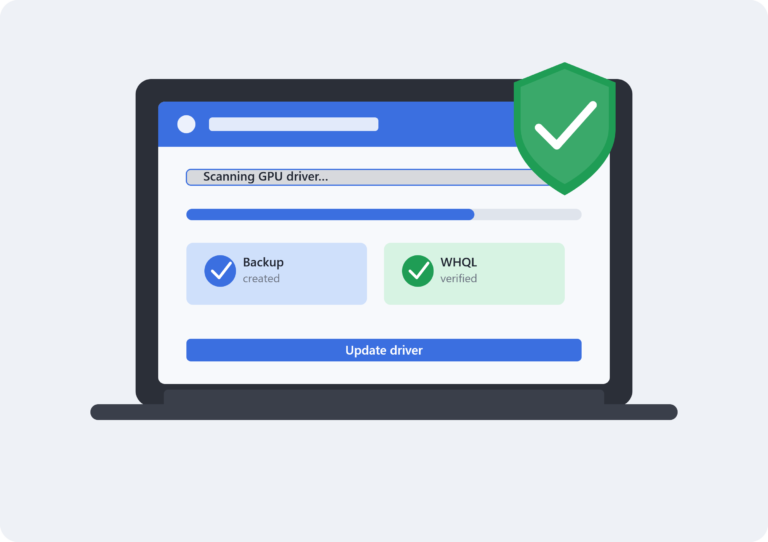
Driver Booster is a driver management utility developed by IObit that scans your system, compares installed driver versions against its database, and flags anything outdated or missing. Instead of manually checking drivers on a PC piece by piece, it consolidates the process into a single scan and update list.
A few things worth knowing about how it works:
- It identifies outdated, missing, or faulty drivers across graphics, audio, network, USB, and other components in one pass.
- It backs up existing drivers before installing new ones, which gives you a rollback option if a new driver causes issues rather than fixing them.
- It includes a game ready mode aimed at gamers who want the newest GPU drivers as soon as they’re available, since those updates often bring performance improvements or fixes for specific titles.
- The free version covers the basics, while the paid tier adds faster download speeds and additional automation.
Like any third party utility that touches system level software, it’s worth downloading directly from the official IObit site rather than a random mirror, and reviewing what it plans to install before clicking update. Automated tools are convenient, but convenience shouldn’t come at the cost of blindly trusting every suggested change.
How to Update Drivers on PC the Right Way
Whether you go the manual route or lean on software, a few habits make the process smoother and safer.
Start With the Manufacturer’s Site for Major Components
For anything performance critical, like a graphics card, it’s worth checking the manufacturer’s own site first. NVIDIA, AMD, and Intel all offer dedicated tools that detect your specific model and serve up the correct driver, tested against their own hardware rather than a generic database.
Create a Restore Point First
Before updating drivers on a PC, especially several at once, create a system restore point. It takes under a minute and gives you an easy way back if a new driver misbehaves. Go to Settings, search for “Create a restore point,” and click Create under System Protection.
Update One Category at a Time
If you’re troubleshooting a specific issue, like choppy audio or a flaky Wi Fi connection, update that driver alone first rather than everything at once. This makes it far easier to tell what actually fixed the problem, and just as importantly, what might have caused a new one.
Restart After Major Updates
Graphics and chipset drivers in particular often need a restart to fully take effect. Skipping this step is a common reason people assume an update “didn’t work” when it actually just hasn’t finished loading.
Keep an Eye on Recently Installed Drivers
If something breaks right after an update, Device Manager lets you roll back a driver to its previous version. Right click the device, open Properties, go to the Driver tab, and select Roll Back Driver if the option is available.
A Simple Routine Worth Adopting
Most people only think about drivers when something already isn’t working, which usually means troubleshooting under a bit of pressure. A better approach is treating driver checks like any other light maintenance task, similar to clearing out temporary files or checking for disk errors every few months.
Set a reminder every three or four months to check drivers on your PC, whether through Device Manager, Windows Update, or a utility like Driver Booster. It’s a small habit, but it tends to catch small issues, a laggy webcam, an underperforming GPU, a printer that occasionally drops connection, before they turn into bigger headaches.
Keeping drivers current won’t fix every PC problem, but it closes off one of the more common and least visible causes of instability. Given how little time it actually takes, it’s one of the easier maintenance habits to stick with.