How to Fix Audio Drivers on Windows 11?
You press play and nothing happens. The volume is up, the speaker icon looks normal, and your PC is still completely silent. On Windows 11, this is almost always an audio driver problem, and most cases take under fifteen minutes to fix. This guide covers the built-in repairs first, then explains how a Driver Booster Windows 11 workflow can help when manual updates fall short.
Why Audio Drivers Break on Windows 11
A driver is the small piece of software that lets Windows talk to your sound hardware. When it goes missing, gets corrupted, or no longer matches your system version, the audio stops working or turns crackly.
The most common trigger is a major Windows update. A feature update can swap your manufacturer driver for a generic one, or leave an older driver that no longer plays well with the new build. Third-party software that installs virtual audio devices can cause similar conflicts.
Knowing this helps you pick the right fix. If sound vanished right after an update, rolling back is often the fastest route. If it has been broken since a fresh install, updating or reinstalling is the better move, and that is where Driver Booster Windows 11 tools can come in later.
Start With the Quick Checks
Before touching drivers, rule out the simple causes. It saves time and prevents unnecessary changes to your system.
Run the Windows 11 Audio Troubleshooter
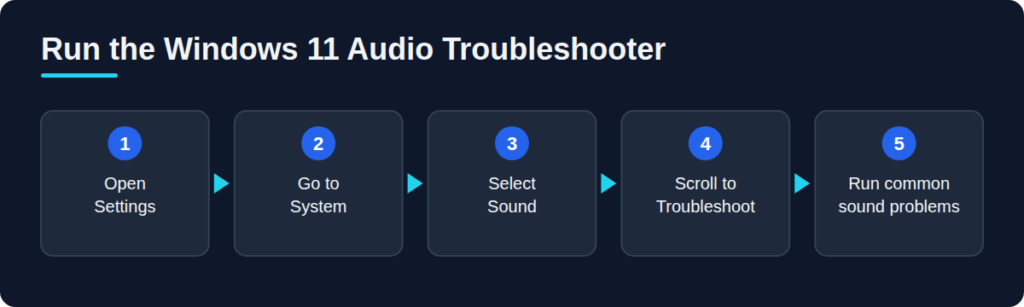
Open Settings, go to System, then Sound, and scroll to the Troubleshoot section. Choose the option for common sound problems and follow the prompts. Windows will check services, default devices, and basic driver status, and it often fixes the issue on its own.
Confirm the Right Output Device Is Selected
In the same Sound page, look at the Output list. Windows sometimes switches to a monitor, Bluetooth headset, or virtual device after an update. Select your speakers or headphones and test again with the volume raised.
Fix Audio Drivers Manually Through Device Manager
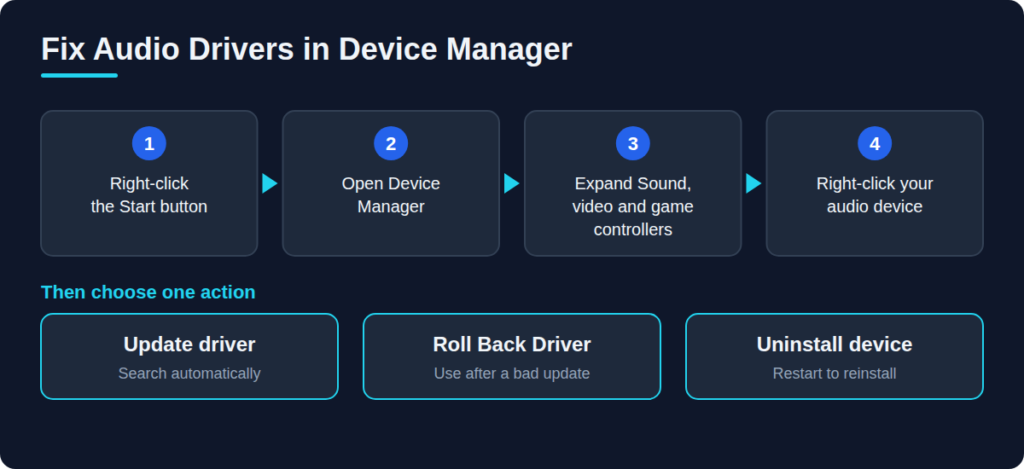
If the quick checks did not help, Device Manager is your next stop. Right-click the Start button, choose Device Manager, then expand “Sound, video and game controllers.”
Update the Audio Driver
Right-click your audio device, often named Realtek Audio or High Definition Audio Device, and pick Update driver. Choose “Search automatically for drivers.” Windows will look for a newer version and install it if one exists. Restart your PC afterward, even if it does not ask.
Roll Back a Bad Driver Update
Right-click the device, open Properties, and go to the Driver tab. If the Roll Back Driver button is active, click it and select a reason. This restores the previous version, which is a lifesaver when sound died right after an update. If the button is greyed out, Windows has no earlier version saved.
Reinstall the Audio Driver From Scratch
Right-click the device and choose Uninstall device. Tick the box to delete the driver software if it appears, confirm, then restart. Windows usually reinstalls a basic driver on boot. For best results, download the latest driver from your PC or motherboard manufacturer’s support page and install it afterward.
Check Optional Windows Updates
Go to Settings, Windows Update, Advanced options, then Optional updates. Look under Driver updates for anything related to audio. Manufacturers sometimes publish drivers here before they reach the main update channel.
Using Driver Booster Windows 11 to Update Audio Drivers
Manual updates depend on Windows finding the right file, and it does not always succeed. This is where a dedicated updater like Driver Booster from IObit helps. Driver Booster Windows 11 support means the tool scans your hardware, compares installed drivers against its database, and lists anything outdated in one place.
Step-by-Step Driver Booster Process
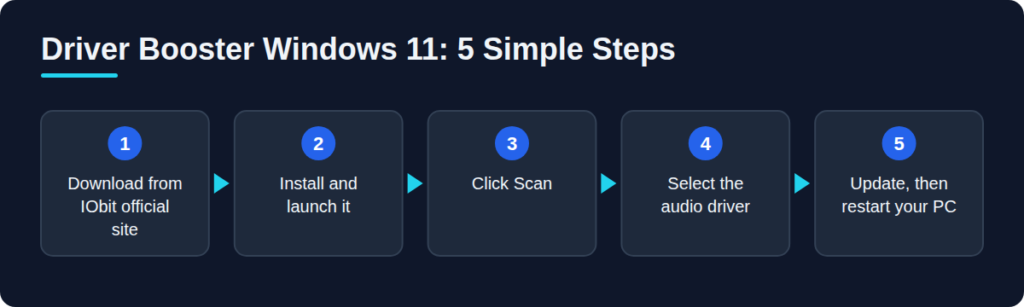
- Download the installer from IObit’s official website, not a third-party mirror.
- Install and launch the program, then click Scan.
- Find the audio entry in the results, usually listed under sound or audio.
- Select it and click Update, or use Update Now for everything flagged.
- Restart your PC once the installation finishes.
Precautions Before You Update
Before running any Driver Booster Windows 11 update, create a Windows restore point or confirm the program’s backup option is turned on. Then update only what you need. If audio is your problem, updating the sound driver alone keeps changes small and easy to undo.
Also note that the free edition may limit download speed or features. Check IObit’s current plan details for Driver Booster Windows 11 before you start so nothing surprises you.
Manual Fixes vs Driver Booster Windows 11: Which Should You Choose?
Manual repair is the safer first step. It uses Microsoft and manufacturer sources directly, so there is little risk of installing a mismatched file. If your problem began after an update, rolling back through Device Manager is faster than any tool.
A Driver Booster Windows 11 scan makes more sense when several drivers are outdated, or when Device Manager keeps saying your driver is up to date while the sound is still broken. It also helps on older machines where the manufacturer stopped publishing updates. Treat it as a helper, not a replacement for understanding what changed on your PC.
Advanced Fixes When Drivers Still Won’t Cooperate
Sometimes the driver is fine and the problem sits elsewhere. Two settings cause trouble often enough to check.
Restart the Windows Audio Services
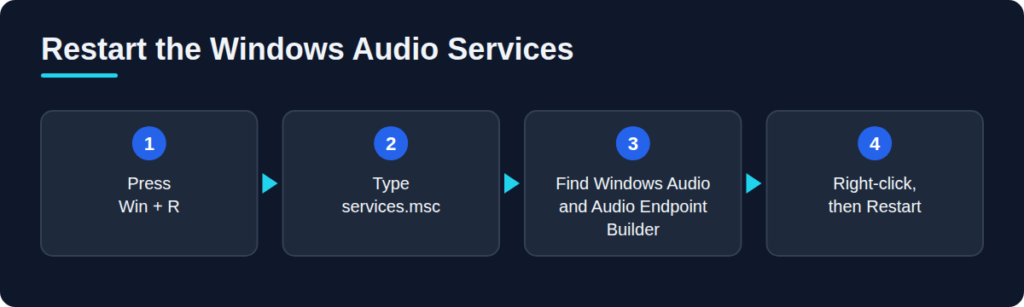
Press the Windows key plus R, type services.msc, and press Enter. Find Windows Audio and Windows Audio Endpoint Builder. Right-click each one and choose Restart. If either is stopped or set to Disabled, set the startup type to Automatic and start it.
Turn Off Audio Enhancements and Exclusive Mode
In Settings, System, Sound, open your output device’s properties and turn off Enhance audio. Then open More sound settings, select the device, click Properties, go to Advanced, and untick the exclusive mode options. Some drivers handle these features poorly, which leads to crackling, low volume, or silence.
Common Mistakes to Avoid
Downloading Drivers From Random Websites
Fake driver pages often bundle unwanted software, so stick to Microsoft, your hardware manufacturer, or a well-known updater’s official site.
Running Several Driver Tools at Once
If you choose Driver Booster Windows 11, let it be your only updater for that session. Multiple tools can conflict, and it becomes hard to tell which one changed what.
Skipping the Restart
Audio drivers load at boot, and many fixes only take effect after a full restart.
Conclusion
Fixing audio drivers on Windows 11 comes down to working from the simple to the specific. Run the troubleshooter, check your output device, then use Device Manager to update, roll back, or reinstall. If those steps fail, a Driver Booster Windows 11 scan is a practical way to find and install a matching driver without hunting through manufacturer sites. Make a restore point, restart after each change, and your sound should be back without a full reinstall.