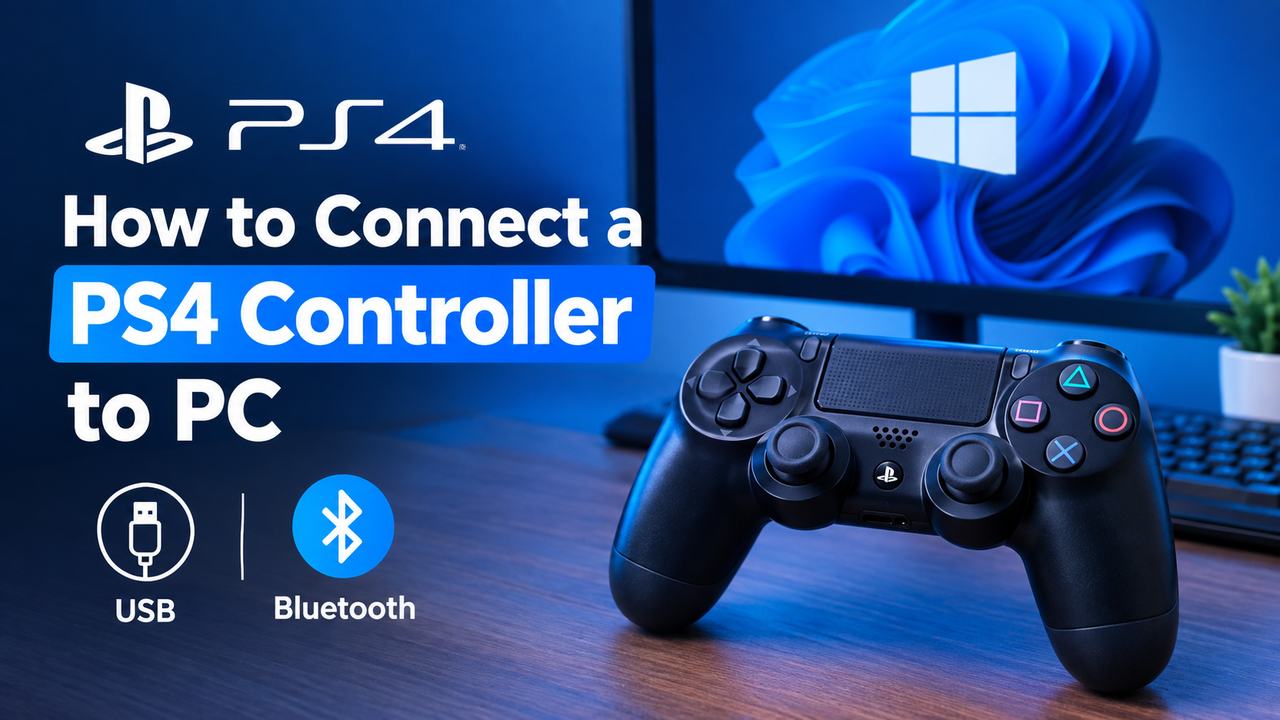
How to Connect a PS4 Controller to PC: USB, Bluetooth and Steam
Yes, your PS4 DualShock 4 works on a PC, and setup takes about two minutes. You can plug it in with a USB cable or pair it wirelessly over Bluetooth. USB is the simplest route because Windows usually detects the controller on its own.
Some games need extra configuration before they respond properly, especially outside Steam. This guide shows how to connect a PS4 controller to PC, pair it, set it up for games, and fix the most common problems.
Can You Connect a PS4 Controller to a PC?
Yes. The DualShock 4 is a standard game controller that Windows recognizes over both USB and Bluetooth. So “do PS4 controllers work on PC” has a simple answer: they do, though how well they work depends on the game.
Steam and many modern titles support the controller directly. Older or less common games may expect an Xbox-style controller, which is where most confusion comes from.
What You Need to Connect a PS4 Controller to PC
The list is short.
PS4 DualShock 4 Controller
This is the standard PS4 gamepad with the touchpad and light bar.
USB Cable
You need a micro USB cable for a wired connection. It must carry data, because some cheap cables only charge.
Bluetooth
Bluetooth is only needed for wireless. Most laptops have it, and many desktops need a small adapter.
Windows PC
Windows 10 and 11 both handle the controller, though game support varies.
How to Connect a PS4 Controller to PC With a USB Cable
Wired is the easiest method and the best first test if wireless gives you trouble.
Step 1: Connect the PS4 Controller to Your PC
Plug the micro USB end into the top of the controller and the other end into a USB port on your PC.
Step 2: Let Windows Detect the Controller
Windows installs the driver automatically. You may see a short “setting up device” notification, and the light bar will glow.
Step 3: Check Whether Windows Recognizes the Controller
Type “Set up USB game controllers” into the Windows search bar and open it. The controller appears as “Wireless Controller.”
Step 4: Test the Controller
Select the controller, click Properties, and press buttons and move the sticks. The on-screen indicators should respond.
What to Do if the Wired PS4 Controller Isn’t Detected
If nothing shows up, jump to the troubleshooting section below.
How to Connect a PS4 Controller to PC With Bluetooth
This works for wireless setups, and pairing is a one-time job.
Step 1: Turn On Bluetooth on Your PC
Open Settings, go to Bluetooth & devices, and switch Bluetooth on.
Step 2: Put the PS4 Controller Into Pairing Mode
With the controller off, hold the PS button and the Share button together. The light bar flashes rapidly when it is ready.
Step 3: Open Bluetooth Settings
In Windows, click Add device, then choose Bluetooth.
Step 4: Select the PS4 Controller
Pick “Wireless Controller” from the list.
Step 5: Complete the Pairing
Wait for the status to change to Connected. The light bar turns a solid color.
Step 6: Test the Wireless Connection
Open the game controller panel described in the USB section and check that buttons respond.
How to Pair a PS4 Controller to PC
“Pair” and “sync” simply mean the Bluetooth process above. Hold PS and Share, add the device in Windows, and select Wireless Controller. After the first pairing, pressing the PS button reconnects it automatically.
How to Connect a PS4 Controller to PC Without Bluetooth
Use the USB cable. A wired connection needs no Bluetooth hardware, and it also charges the controller while you play. Follow the steps in the USB cable section above.
How to Set Up a PS4 Controller on PC
Connecting the controller and playing with it are two separate things. A game must also understand the input.
How to Use a PS4 Controller With Steam
Steam handles the DualShock 4 well. Open Steam, go to Settings, then Controller, and turn on PlayStation Configuration Support. Steam lets you remap buttons and adjust stick sensitivity from the same menu.
How to Use a PS4 Controller With Non-Steam Games
Many non-Steam games detect the controller without any setup. Others do not. The simplest fix is to add the game to your Steam library as a non-Steam game and launch it from there, so Steam translates the input.
Why Some Games Show Xbox Button Prompts
Most PC games are built around Xbox controllers. When they receive DualShock input, they may still show A, B, X and Y icons even though you are pressing Cross, Circle, Square and Triangle. The buttons work. Only the on-screen labels are wrong.
How to Play Fortnite on PC With a PS4 Controller
Fortnite supports the DualShock 4 natively. Connect the controller first, then launch the game. If it does not respond, open the in-game settings, go to the Controller tab, and check that controller input is enabled. Launching through Steam sometimes helps when the game ignores the pad.
PS4 Controller Not Connecting to PC? Try These Fixes
Work through these in order.
1. Check the USB Cable
Swap in a cable you know carries data.
2. Try a Different USB Port
Use a port on the back of a desktop if you can.
3. Check Bluetooth
Make sure it is on and that Airplane mode is off.
4. Put the Controller Back Into Pairing Mode
Hold PS and Share until the light bar flashes fast.
5. Remove the Controller and Pair It Again
Delete the controller in Bluetooth settings, then pair it fresh.
6. Restart the Controller
Press the tiny reset button on the back, near the L2 shoulder, with a paperclip for a few seconds.
7. Restart the PC
It clears stuck Bluetooth and USB services.
8. Check Windows Device Detection
Open Device Manager and look for an unknown device or a yellow warning icon. Either one points to a driver problem.
9. Check for Driver Problems
Outdated Bluetooth or USB drivers are a common cause of failed detection. Updating them manually through Device Manager works. A driver updater such as Driver Booster can do it faster if you have several out-of-date drivers.
PS4 Controller Connected to PC but Not Working
This is a different problem. The connection exists, but input is not reaching the game.
Windows Detects the Controller but the Game Doesn’t
The game likely lacks DualShock support. Launch it through Steam with PlayStation Configuration Support turned on.
Buttons or Analog Sticks Aren’t Working Correctly
Recalibrate in the Windows game controller panel, or remap in Steam.
Controller Keeps Disconnecting
Move closer to the PC, remove other Bluetooth devices, and charge the controller. Low battery is a frequent cause. A weak USB port or loose cable does the same thing on wired connections.
How to Check PS4 Controller Battery on PC
Steam shows the battery level in its controller settings, and some games display it on screen. Windows Bluetooth settings may also show it.
How to Charge a PS4 Controller on PC
Plug the controller into a PC USB port. The light bar pulses orange while it charges and goes dark when full. Note that the controller can charge and send input at the same time over USB.
How to Turn Off or Disconnect a PS4 Controller on PC
How to Turn Off the Controller
Hold the PS button for about ten seconds.
How to Disconnect a Bluetooth PS4 Controller
Open Bluetooth settings, select the controller and click Remove device.
How to Disconnect a Wired PS4 Controller
Unplug the cable.
PS4 Controller USB vs Bluetooth
| Feature | USB | Bluetooth |
|---|---|---|
| Connection | Wired | Wireless |
| Setup | Plug in | Pair once |
| Bluetooth needed | No | Yes |
| Charges controller | Yes | No |
| Mobility | Limited by cable | Full freedom |
Choose USB for competitive games, long sessions and troubleshooting. Choose Bluetooth for couch gaming and a tidy desk.
Frequently Asked Questions
Can I use a PS4 controller on my PC?
Yes, over USB or Bluetooth.
Do I need Bluetooth to connect a PS4 controller to PC?
No. A USB cable works without it.
How do I get my PS4 controller to work on PC in a game?
Connect it, confirm Windows detects it, then enable PlayStation Configuration Support in Steam if the game does not respond.
Why does my PS4 controller work in Windows but not in my game?
The game may only support Xbox-style input. Launching it through Steam usually fixes that.
Final Thoughts
Learning how to connect a PS4 controller to PC comes down to one choice: cable for reliability, Bluetooth for freedom. Once Windows detects the controller, Steam handles most game compatibility problems. If something still fails, check the cable, re-pair the controller and update your drivers before anything else.
Related Post: Connect PS5 Controller to PC