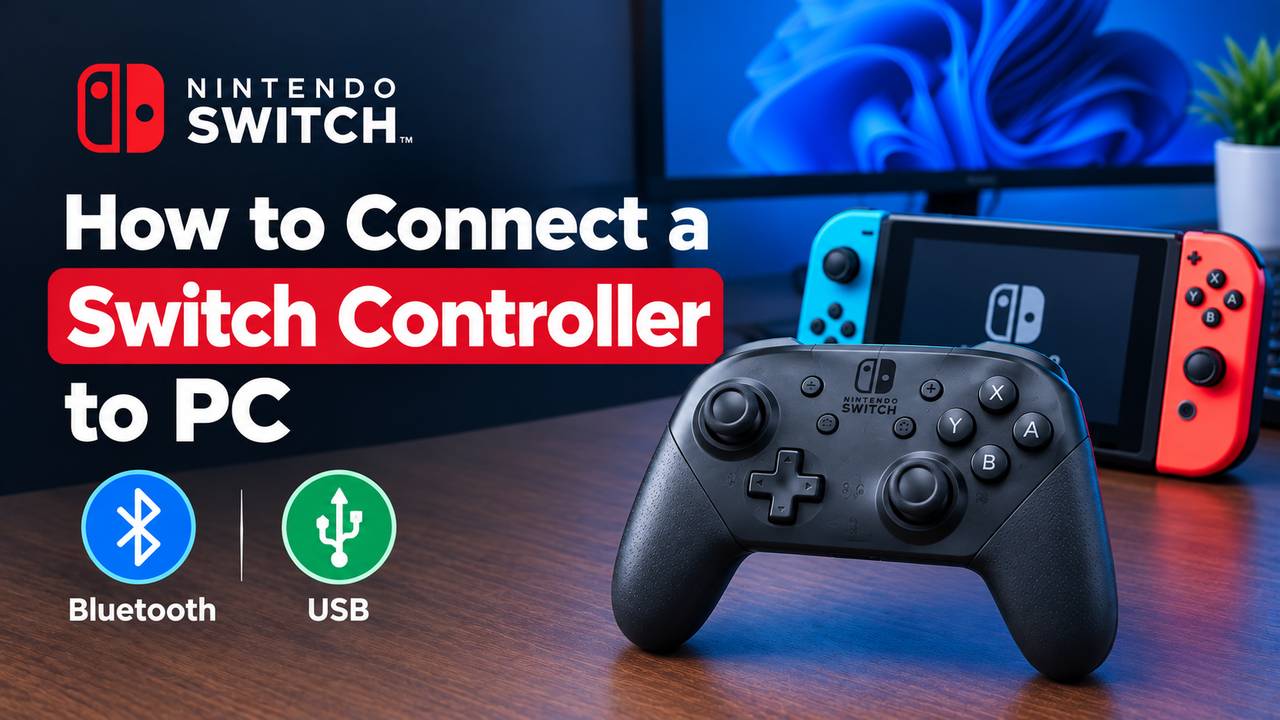
How to Connect a Nintendo Switch Controller to PC: Bluetooth & USB
You sit down at your PC, launch a game, and the keyboard just feels wrong. Meanwhile a perfectly good gamepad is sitting on your shelf. The good news is that you can connect a Switch controller to PC in a few minutes, either over Bluetooth or with a USB cable. This guide covers the Pro Controller and Joy-Cons, plus what to do when Windows or a game refuses to cooperate.
Can You Use a Nintendo Switch Controller on PC?
Yes. Windows 10 and Windows 11 can detect both the Switch Pro Controller and Joy-Cons, so you can use a Nintendo Switch controller on PC without owning the console at all. The Pro Controller works over Bluetooth or a wired USB connection. Joy-Cons work over Bluetooth only.
Detection is only half the story, though. Many PC games expect an Xbox style layout, so some titles need an extra step before the buttons behave. We cover that further down.
What You Need to Connect a Switch Controller to PC
Nintendo Switch Pro Controller
This is the easiest option. It has a full-size grip, a proper D-pad, and it supports both connection methods.
Joy-Cons
You can pair the left and right Joy-Con separately. Each one shows up as its own device in Windows, which matters for how you set them up later.
USB Cable
You need a USB-C cable that carries data. Some cheap cables only charge, and they will never get the controller detected.
Bluetooth
Most laptops have Bluetooth built in. Many desktops do not, so you may need a small USB Bluetooth adapter.
How to Connect a Nintendo Switch Pro Controller to PC With Bluetooth
Bluetooth is the cleanest way to connect a Switch controller to PC because it leaves your USB ports free and removes the cable from your desk.
Step 1: Turn On Bluetooth
Open Settings, go to Bluetooth & devices, and switch Bluetooth on. If the toggle is missing, your PC probably has no Bluetooth hardware.
Step 2: Put the Controller Into Pairing Mode
Find the small sync button on the top edge of the Pro Controller, next to the USB-C port. Hold it until the four player lights start sweeping back and forth. That animation means the controller is discoverable.
Step 3: Open Windows Bluetooth Settings
In Bluetooth & devices, click Add device, then choose Bluetooth. Windows will start scanning for nearby gear.
Step 4: Select the Pro Controller
When “Pro Controller” appears in the list, click it. If nothing shows up, hold the sync button again, because the pairing window closes after a short time.
Step 5: Complete Pairing
Wait for Windows to say the device is connected. The player lights on the controller will settle into a steady pattern.
Step 6: Test the Controller
Open the Windows game controller test panel, or launch Steam and check the controller settings. Press every button and move both sticks to confirm they respond.
Nintendo pads are not the only gamepads that work on Windows. If you also own a PlayStation controller, you can learn how to connect a PS5 controller to a PC using USB or Bluetooth.
How to Connect a Switch Pro Controller to PC With USB
A cable is the most reliable way to connect a Switch controller to PC, and it also works for any wired Switch controller built for PC use.
Step 1: Connect the USB Cable
Plug the USB-C end into the controller and the other end into a free port on your PC. A direct motherboard port works better than an unpowered hub.
Step 2: Let Windows Detect the Controller
Windows should play the usual device sound and install a basic driver on its own. Give it a few seconds.
Step 3: Check the Connection
Open Settings, then Bluetooth & devices, then Devices. You can also search for “Set up USB game controllers” in the Start menu to see the controller listed.
Step 4: Test the Controller
Use the properties window or Steam to confirm that buttons and sticks respond. If they do, you are ready to play.
If you are mixing in an older PlayStation pad, our guide to PS4 controller setup on PC walks through the same wired approach.
How to Connect and Pair Joy-Cons to PC
Joy-Cons connect through Bluetooth only. Pairing them is slightly different from the Pro Controller because each one is its own device.
Put the Joy-Con Into Pairing Mode
Slide the Joy-Con off the console or grip. Press and hold the small sync button on the rail edge until its lights begin to flash.
Open Bluetooth Settings
Go to Bluetooth & devices and click Add device, then Bluetooth.
Select the Joy-Con
Choose “Joy-Con (L)” or “Joy-Con (R)” from the list. Pair them one at a time so you do not confuse the two.
Complete Pairing
After pairing, Windows should list the Joy-Con as a connected Bluetooth device. Repeat the process for the second Joy-Con if you want both.
Test the Joy-Con
Open Steam or the Windows controller test panel and press a few buttons. Held sideways, a single Joy-Con works as a small standalone gamepad.
How to Use a Switch Pro Controller on PC Games
Once Windows sees the controller, the next question is whether your games do.
Using the Switch Pro Controller With Steam
Steam has built in support for the Pro Controller. Open Steam, go to Settings, then Controller, and turn on Switch Pro Controller Configuration Support. Steam Input will then translate the pad so most games treat it like a standard controller.
Using It With Non-Steam Games
Games outside Steam often expect an Xbox style controller. The simplest fix is to add the game to Steam as a non-Steam game, then launch it from there so Steam Input applies.
When a Game Does Not Recognize the Controller
Check the in-game controller options first. If the game only lists keyboard and mouse, close it, start Steam, and relaunch the game through Steam.
Controller Button Layout Differences
Nintendo swaps the A and B buttons, and the X and Y buttons, compared with Xbox. That means on-screen prompts can feel backwards. You can remap them in Steam Input if the layout bothers you.
Xbox users can skip most of this. See our guide to Xbox controller setup on PC for Bluetooth, USB, and wireless connections.
Switch Controller Not Working on PC? Try These Fixes
Work through these in order. They fix the vast majority of connection problems.
Check Bluetooth
Make sure Bluetooth is on and that airplane mode is off. A disabled adapter is a very common cause.
Re-Pair the Controller
Put the controller back into pairing mode and run through the pairing steps again. Fresh pairing often clears odd behavior.
Remove the Old Bluetooth Pairing
Open Bluetooth & devices, click the three dots next to the controller, and choose Remove device. Then pair it again from scratch.
Restart the Controller and PC
Restart Windows and let the controller power fully off before trying again. It sounds basic, but it works more often than you would expect.
Try a USB Connection
If Bluetooth keeps failing, plug the controller in. A wired connection also helps you tell whether the problem is the controller or the Bluetooth adapter.
Check the USB Cable
Swap in a different cable. Charge-only cables look identical to data cables, so this is worth testing.
Try Another USB Port
Use a port directly on the PC rather than a hub or front panel connector.
Check Windows Device Detection
Open Device Manager and look for the controller under Human Interface Devices or Bluetooth. A yellow warning icon means the driver needs attention.
Check Controller and Input Drivers
Run Windows Update, then restart. If the device still shows an error, right click it in Device Manager and choose Update driver.
Switch Pro Controller Connected but Not Working in a Game
Sometimes Windows is happy and the game is not.
Windows detects it but the game does not. The game likely expects an Xbox style input. Launch it through Steam so Steam Input can translate the controller.
Steam detects it but the game does not. Open the game’s properties in Steam, go to Controller, and make sure Steam Input is enabled rather than disabled.
It works in one game but not another. Each game handles controllers differently. Look at the in-game controller settings and confirm the correct input device is selected.
Check Steam Input. If buttons are doing the wrong thing, reset the controller layout to the default template and test again.
Bluetooth vs USB: Which Should You Use?
| Factor | Bluetooth | USB |
|---|---|---|
| Setup | A few pairing steps | Plug in and go |
| Convenience | No cable on your desk | Cable limits movement |
| Connection stability | Can drop with interference | Very stable |
| Cable requirements | None | Data capable USB-C cable |
| Latency | Slightly higher | Lowest |
| Battery requirements | Uses the controller battery | Charges while you play |
If you play casually from a couch, Bluetooth is the better pick. For fast competitive games, wired is the safer choice.
How to Disconnect a Switch Controller From PC
Disconnect Bluetooth
Open Bluetooth & devices, select the controller, and click Disconnect. It will stay paired and reconnect when you press a button.
Disconnect USB
Unplug the cable. Windows will release the device immediately.
Remove the Controller From Windows
To wipe it completely, click the three dots beside the device and choose Remove device. You will need to pair it again next time.
Frequently Asked Questions
Can you use a Switch controller on PC?
Yes. Windows can detect Switch Pro Controllers and Joy-Cons, and most games work well once Steam Input is turned on.
Does the Switch Pro Controller work on PC with Bluetooth or USB?
Both work. Bluetooth gives you wireless freedom, and USB gives you the most stable connection.
How do you pair a Switch Pro Controller to PC?
Hold the sync button on top of the controller until the lights sweep, then add it as a Bluetooth device in Windows settings.
Can Joy-Cons connect to PC?
Yes, through Bluetooth. Pair the left and right Joy-Con separately, and use Steam if you want to treat them as one controller.
Can you use a wired Switch controller on PC?
Yes. A wired Pro Controller connection works through a data capable USB-C cable, and Windows detects it automatically.
Final Takeaway
You now have two reliable ways to connect a Switch controller to PC. Bluetooth keeps things tidy, while USB gives you the steadiest signal and no battery worries. The Pro Controller is the easiest all round choice, and Joy-Cons are a solid backup when you need a pad in a hurry.
Pick whichever method suits your setup, turn on Steam Input if a game stubbornly ignores your pad, and you will be playing in minutes.