How to Check Drivers on Windows 10: A Complete Guide
If your PC has ever frozen mid-game, lost sound out of nowhere, or refused to recognize a printer, there’s a good chance an outdated or corrupted driver was the culprit. Drivers are the quiet translators between your hardware and Windows. When they fall out of date, your system doesn’t crash loudly. It just gets a little worse every day until something finally breaks.
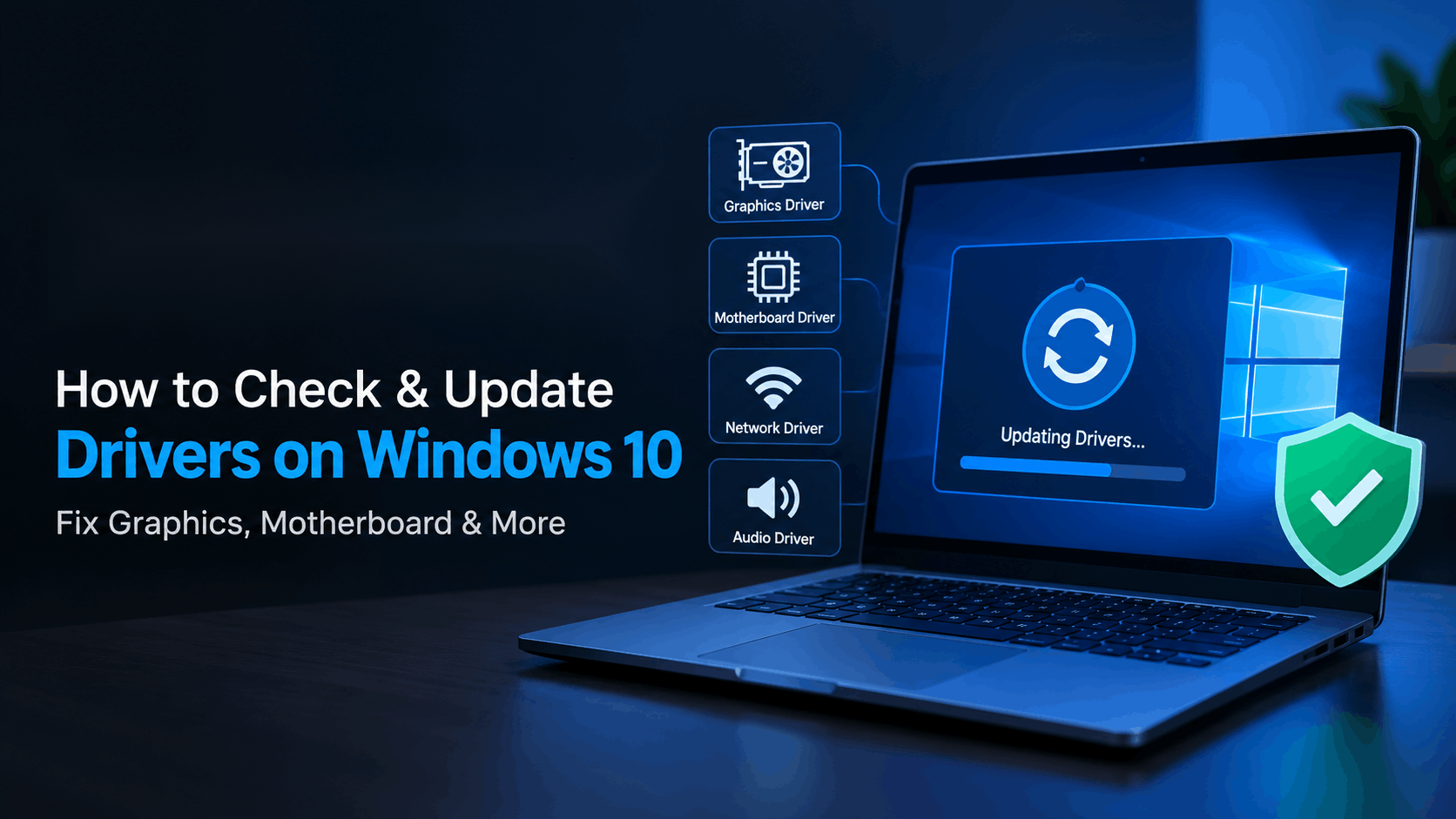
The good news is that checking and fixing drivers on Windows 10 doesn’t require deep technical knowledge. This guide walks through manual checks, when to reach for a tool like Driver Booster Windows 10, how to specifically update your graphic driver, a quick motherboard driver guide, and an honest answer to the question everyone asks: is Driver Booster safe?
Why Checking Your Drivers Actually Matters
Every piece of hardware in your computer, from the Wi-Fi card to the mouse, relies on a driver to communicate with the operating system. An outdated driver isn’t just a performance issue. It can cause:
- Random blue screens or restarts
- Missing or crackling audio
- Graphics stuttering or artifacts in games
- Devices that stop being detected after a Windows update
- Slower boot times
Most people only think about drivers after something breaks. A better habit is checking every few months, especially after a major Windows update, since those updates sometimes overwrite manufacturer drivers with generic ones.
How to Check Drivers Manually in Windows 10
Before installing any third-party tool, it’s worth knowing how to check things yourself. Here’s the fastest built-in method.
Using Device Manager
- Right-click the Start button and select Device Manager.
- Look for any device with a yellow warning triangle. That’s an immediate red flag.
- Expand categories like Display adapters, Sound, video and game controllers, and Network adapters.
- Right-click a device, choose Properties, then open the Driver tab to see the current version and date.
If a driver is more than a year or two old, or the version listed doesn’t match what’s currently on the manufacturer’s website, it’s time for an update.
Using Windows Update
Windows Update also delivers driver updates automatically for many components. Go to Settings > Update & Security > Windows Update and check for optional updates. This catches the basics, but it’s often slower to pick up niche or gaming-specific driver releases compared to going straight to the manufacturer.
How Can I Update My Graphic Driver
Your graphics driver probably has more impact on day-to-day experience than any other driver on your system, especially if you game, edit video, or run multiple monitors. There are three reliable ways to update it.
Option 1: Go direct to the manufacturer. If you have an NVIDIA, AMD, or Intel GPU, each company offers a dedicated app (GeForce Experience, AMD Software, or Intel Driver & Support Assistant) that detects your exact card and installs the correct driver automatically. This is usually the safest and most precise route.
Option 2: Use Device Manager. Right-click your graphics card under Display adapters, select Update driver, then Search automatically for drivers. This pulls from Windows Update’s driver library, which is reliable but sometimes a version or two behind.
Option 3: Use a driver updater tool. This is where something like Driver Booster Windows 10 comes in. Instead of hunting down the right driver page for your exact card model, the software scans your system and matches it against a large database of manufacturer-sourced drivers.
A quick tip regardless of method: always create a restore point before a major graphics driver update. It takes thirty seconds and saves you a headache if a new driver conflicts with your setup.
Motherboard Driver Guide
Motherboard drivers get overlooked far more than graphics drivers, but they’re just as important. These include chipset drivers, audio drivers, LAN or Wi-Fi drivers, and sometimes drivers for onboard RGB or fan control software.
Here’s a simple approach to keeping them current:
- Identify your motherboard model. Open Command Prompt and type
wmic baseboard get product,manufacturerto see the exact model. - Visit the manufacturer’s support page. ASUS, MSI, Gigabyte, and ASRock all host driver downloads by motherboard model, not just by chipset.
- Prioritize chipset drivers first. These affect how well every other component on the board communicates, so update them before anything else.
- Update audio and LAN drivers separately if issues persist. Sometimes a chipset update alone won’t fix a specific audio glitch or dropped network connection.
If manually tracking down the correct BIOS revision and driver version for your specific board feels tedious, a driver scanner tool can shortcut the process by identifying the board automatically and pulling matching files.
Driver Booster Windows 10: What It Actually Does
Driver Booster, made by IObit, is one of the more widely used driver update utilities for Windows 10 and 11. Instead of manually checking Device Manager one device at a time, it scans your entire system in one pass and flags every outdated, missing, or broken driver it finds.
A few things worth knowing before you install it:
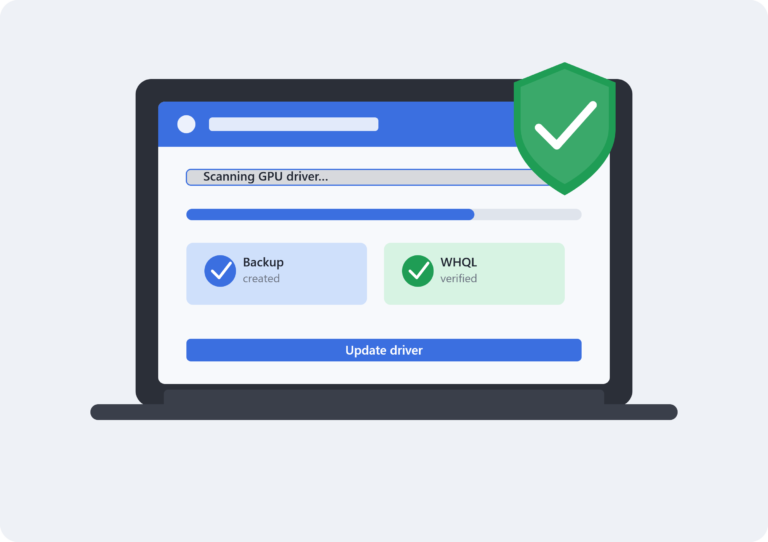
- It pulls driver files from a large database that includes WHQL-certified drivers, meaning they’ve passed Microsoft’s compatibility testing.
- It can back up your current drivers before applying updates, which makes rolling back simple if a new driver causes an issue.
- The free version covers the basics. The Pro version adds faster download speeds and features like offline driver installation for situations where a broken network driver has knocked out your internet connection entirely.
Is Driver Booster Safe?
This is the question most people actually want answered before they install anything. The short version: yes, Driver Booster itself is not malware, and the drivers it installs are sourced from legitimate manufacturers and pass Microsoft’s WHQL certification process.
That said, a few practical points are worth keeping in mind:
- Like many free utility tools, older installers have occasionally bundled optional third-party offers during setup. Always choose the custom installation option and uncheck anything you don’t recognize.
- Download it only from IObit’s official site, not from a random third-party download portal, to avoid a repackaged installer with unwanted extras.
- Automatic driver tools are convenient, but for critical components like your graphics card, it’s still worth double-checking the version against the manufacturer’s own release notes, particularly right after a major game launch or a new GPU driver drop.
Used carefully, it’s a legitimate time-saver rather than something to be wary of.
Keeping Your System Running Smoothly
Whether you check drivers manually through Device Manager, dig up the right files using a motherboard driver guide, or lean on a tool like Driver Booster Windows 10 to handle the heavy lifting, the underlying goal is the same: fewer crashes, better performance, and hardware that actually behaves the way it’s supposed to. Building a habit of checking every few months, backing up before major updates, and sourcing drivers from official channels will keep your PC stable far longer than waiting until something breaks.