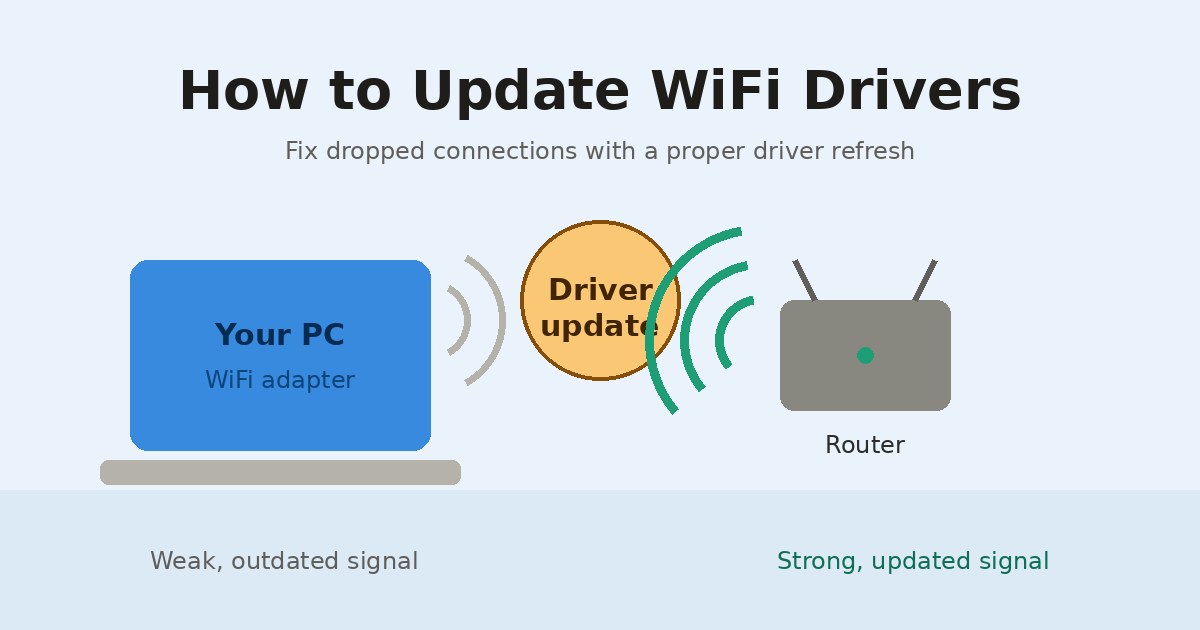
How to Update WiFi Drivers: Manual Fixes and the Driver Booster 13 Shortcut
Your download speed drops to a crawl. The connection holds for ten minutes, then vanishes. You restart the router, blame the ISP, and nothing changes. Nine times out of ten in my experience servicing laptops, the router was never the problem. An outdated or mismatched wireless adapter driver was. Learning how to update WiFi drivers properly, whether by hand through Device Manager or automatically with a tool like Driver Booster 13, is the fastest way to end that cycle for good.
This guide walks through both approaches, explains when each one makes sense, and covers the question a lot of readers ask before installing any third-party utility.
Why WiFi Drivers Go Stale in the First Place
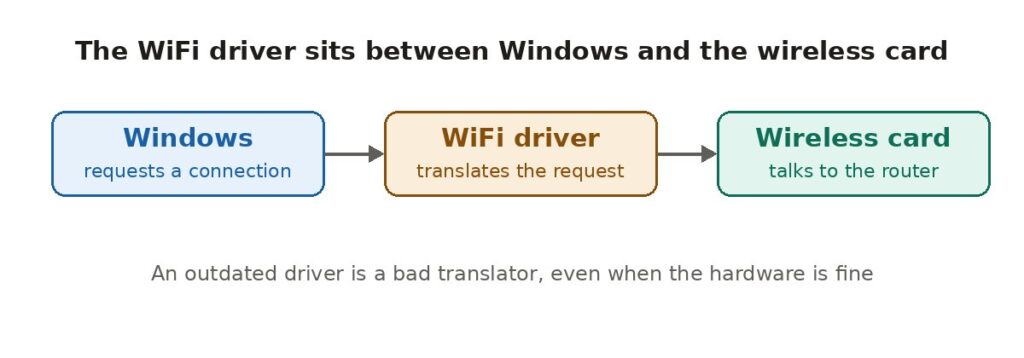
A driver is the translation layer between Windows and your wireless card. When Intel, Realtek, Broadcom, or MediaTek ships a firmware revision to handle a new 802.11 standard or patch a power management bug, your machine does not automatically receive it.
Windows Update does distribute some network drivers, but it is conservative. It often holds back optional driver packages for months, and on many OEM laptops it serves a generic Microsoft-signed driver instead of the vendor’s own build. That generic driver works. It just does not work well.
The symptoms are recognizable once you know them. Wake-from-sleep disconnects. 5 GHz networks that refuse to appear in the list. Throughput that caps far below what your plan should deliver. Random “limited connectivity” warnings on a network everything else connects to fine.
Method 1: Update WiFi Drivers Through Device Manager
This is the built-in route and it costs nothing but a few minutes.
- Press Windows + X and select Device Manager.
- Expand the Network adapters section.
- Find your wireless adapter. It will usually contain the words “Wireless,” “WiFi,” “Wi-Fi 6,” or “802.11ax” in the name.
- Right click it and choose Update driver.
- Select Search automatically for drivers.
Windows will check its own catalog and install anything newer that it finds. Be aware of what this step actually does. It queries Microsoft’s repository, not the hardware vendor’s. If Windows reports that the best driver is already installed, that claim is scoped to what Microsoft has published, which is frequently behind.
For a genuinely current build, go to the source. Intel maintains its own Download Center for wireless adapters, and Dell, HP, Lenovo, and ASUS all host driver pages indexed by service tag or serial number. Download the installer, run it, reboot, and test.
Method 2: Reinstall the Adapter to Clear a Corrupted Driver
Sometimes the version number is fine and the installation itself is damaged. This happens after failed updates, aggressive cleanup utilities, or a bad shutdown during a driver write.
In Device Manager, right click the wireless adapter and select Uninstall device. If a checkbox appears offering to delete the driver software, leave it unchecked on your first attempt. Restart the machine. Windows detects the missing adapter on boot and reinstalls a working driver automatically.
One important caution before you do this on a desktop. If your only internet connection is that wireless card, download the replacement driver to a USB stick first. Uninstalling the adapter with no backup copy on hand is how people end up stranded with no way to get online.
Method 3: Automate the Whole Process with Driver Booster 13
Manual updating works. It is also tedious, and it scales badly. A typical laptop has twenty to forty drivers across chipset, audio, graphics, Bluetooth, touchpad, card reader, and network components. Checking each vendor site individually is not a realistic weekend project.
That is the niche driver updaters fill. Driver Booster 13 from IObit scans installed hardware, compares each driver against its database, and installs matched versions in a single pass. IObit launched version 13 in September 2025, adding native support for Windows 10 and 11 on ARM64 devices along with AI-assisted driver matching. The 13.6 builds released through 2026 have continued expanding the game-ready driver set.
For WiFi specifically, the practical advantage is the size of the catalog. Wireless chipsets are fragmented. The card in a budget Acer might be a MediaTek part that the laptop maker stopped supporting two years ago, while the chipset vendor has kept shipping updates. A database that indexes by hardware ID rather than laptop model finds that driver. A manual search on the OEM support page does not.
The tool also creates a restore point before it writes anything, which matters more for network drivers than most categories. If a new wireless driver kills your connection, you need a way back that does not require downloading something.
Is DriverBooster Safe to Download?
This question comes up constantly, and it deserves an honest answer rather than a marketing one.
The software itself is legitimate. IObit is an established developer with more than a decade of releases, and the official installer is clean. Reputable download mirrors carry it, and independent reviewers including PC Magazine have covered it favorably against competitors like Ashampoo Driver Updater.
There are two real caveats worth knowing.
First, the installer has historically bundled offers for other IObit products. Read each screen during setup and decline anything you did not come for. This is a nuisance, not malware, but it catches people who click through installers on autopilot.
Second, and this applies to every driver updater ever made, automatic updates are not risk free. A driver that is newer is not automatically a driver that is better for your specific hardware revision. Keep the backup feature enabled and verify that a restore point exists before running a bulk update.
The larger safety issue is not the software. It is the source. Search results for driver tools are saturated with cracked builds, “portable editions,” and keygen archives distributed through file-locker sites. Those packages are frequently repackaged with adware or worse. Download from the developer’s own domain or a vetted mirror, and the safety question largely answers itself.
What to Do If the Update Makes Things Worse
Occasionally a new wireless driver introduces a regression. Windows keeps the previous version available for exactly this reason.
Return to Device Manager, right click the adapter, open Properties, and switch to the Driver tab. If Roll Back Driver is available, click it. The old version returns after a reboot. If the button is greyed out, no previous version is stored, and you will need to download the earlier release from the vendor and install it manually.
Microsoft’s own network troubleshooting documentation covers the adjacent steps worth trying if the driver turns out not to be the culprit, including TCP/IP stack resets and adapter power management settings.
Closing Thoughts
Most chronic WiFi frustration traces back to a driver nobody thought to check. The manual route through Device Manager and vendor downloads is free, precise, and completely adequate if you are maintaining one machine and do not mind the legwork.
If you are managing several computers, or you simply want the entire driver set current without auditing it yourself, Driver Booster 13 handles the scanning and matching that manual updating makes so slow. Enable backups, download from the official source, and treat any automated update as something to verify rather than something to trust blindly.
Either way, check your wireless driver before you blame your router again. The fix is usually sitting right there in Device Manager.