How to Update Chipset Drivers: A Complete Guide for Faster, More Stable PCs
If your PC has started feeling sluggish, randomly disconnecting USB devices, or struggling to keep up during gaming sessions, outdated chipset drivers might be the hidden culprit. Most people update their graphics drivers religiously but completely forget about the chipset, the unsung hero that manages communication between your CPU, RAM, storage, and every peripheral plugged into your motherboard. Learning how to update chipset drivers properly can fix stability issues, unlock better performance, and even resolve compatibility problems with newer hardware.
In this guide, we’ll walk through what chipset drivers actually do, how to check chipset version details on your system, and the safest ways to get them updated, including when a tool like Driver Booster makes sense.
What Chipset Drivers Actually Do
Think of your motherboard’s chipset as a traffic controller. It routes data between your processor, memory, storage drives, and expansion slots. When this “traffic controller” is running outdated software, you get bottlenecks: slower data transfer, poor power management, and sometimes outright hardware conflicts.
I’ve seen this firsthand while troubleshooting a friend’s build that kept throttling under load despite having a perfectly capable CPU and cooler. Turns out the chipset drivers hadn’t been touched since the motherboard shipped two years earlier. A fresh install brought temperatures and performance back in line almost immediately.
Chipset drivers aren’t flashy like GPU drivers, but they quietly influence everything from USB port stability to how efficiently your system manages power states.
How to Check Chipset Version Before You Update
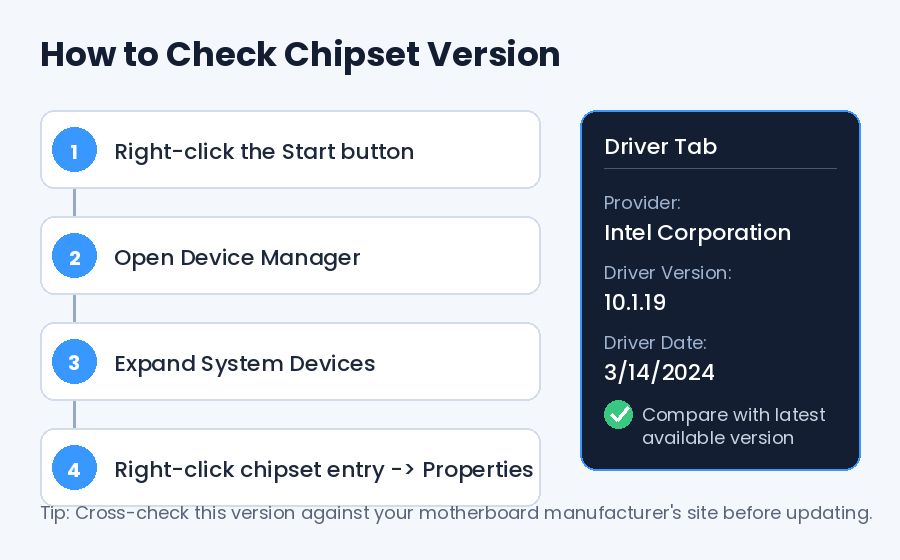
Before installing anything new, you need to know what you’re currently running. Here’s a quick way to check chipset version information on Windows:
- Open Device Manager by right-clicking the Start button.
- Expand System Devices.
- Look for entries mentioning your chipset manufacturer (Intel, AMD, or occasionally VIA).
- Right-click the relevant entry and select Properties, then check the Driver tab for version and date.
Alternatively, tools like CPU-Z or HWiNFO give a cleaner breakdown of chipset model and driver version without digging through menus. Cross-referencing this against your motherboard manufacturer’s support page tells you immediately whether you’re behind.
Knowing your current version matters because installing an older driver over a newer one, or the wrong chipset family entirely, can cause more problems than it solves.
Manual Update: The Safer, Slower Route
The most reliable way to update chipset drivers is going straight to the source. Visit your motherboard manufacturer’s website (ASUS, MSI, Gigabyte, ASRock) or, for laptops, the manufacturer’s support page directly. Search for your exact model number, then locate the chipset driver section under downloads.
A few things worth keeping in mind here:
- Always match the driver to your exact motherboard revision, not just the general model name.
- Download directly from the manufacturer rather than third-party mirror sites.
- Restart your PC after installation, even if it doesn’t prompt you to.
This method takes longer because you’re manually hunting for files, but it guarantees you’re getting drivers tested specifically for your hardware.
Using Driver Booster for Automated Updates
Manually tracking down drivers for every component gets tedious fast, especially if you’re managing multiple machines or just don’t have the patience to dig through manufacturer support pages. This is where Driver Booster comes in.
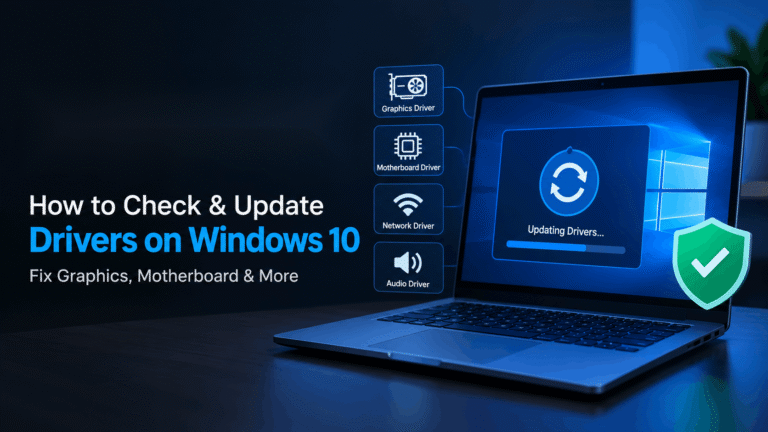
Driver Booster scans your system, compares installed drivers against its database, and flags anything outdated, including chipset, graphics, network, and audio drivers. It automates a process that would otherwise take an hour of manual searching into a few clicks.
That said, automated tools come with tradeoffs worth understanding:
- Speed vs. precision: Automated scans are fast, but occasionally flag a driver as outdated when it’s actually a stable, intentionally older version.
- Backup features matter: A decent driver updater should let you create a restore point or backup before applying changes, so you can roll back if something goes wrong.
- Not a substitute for research: If you’re troubleshooting a specific issue, checking manufacturer forums first can save you from installing a driver that doesn’t actually address your problem.
For most everyday users who just want their system current without becoming a driver archaeologist, a tool like this strikes a reasonable balance between convenience and safety, provided you stick to reputable software and avoid bundled junk during installation.
Why This Matters for Performance: The Bottleneck Connection
Here’s something a lot of people miss: chipset drivers directly affect how efficiently your CPU and GPU can actually talk to each other. If you’ve ever run a PC Bottleneck Calculator and gotten confusing results, an outdated chipset could be part of the picture.
A bottleneck calculator estimates how well your CPU and GPU are matched based on specs, but it can’t account for software-level inefficiencies like poor PCIe lane management or laggy memory timing caused by stale drivers. In other words, your hardware might be balanced on paper while still underperforming because the chipset isn’t managing data flow properly.
Updating chipset drivers won’t magically turn a budget CPU into a high-end one, but it removes an unnecessary variable when you’re diagnosing whether your bottleneck is genuinely a hardware mismatch or something fixable with a driver update.
Step-by-Step Summary
To keep things practical, here’s the whole process condensed:
- Check your current chipset version using Device Manager or a utility like CPU-Z.
- Note your exact motherboard model and revision.
- Visit the manufacturer’s official support page and download the matching chipset driver, or use an automated tool such as Driver Booster if you prefer a guided process.
- Create a system restore point before installing anything new.
- Install the driver, restart your PC, and confirm the new version appears in Device Manager.
- Re-run any performance or bottleneck tests to see if behavior has improved.
Final Thoughts
Chipset drivers rarely get the attention they deserve, but they’re foundational to how smoothly your entire system runs. Whether you go the manual route through your motherboard manufacturer or lean on automated software like Driver Booster, the key is staying current without skipping the basics: know your hardware, back up before changes, and verify the update actually took effect.
A few minutes spent checking chipset version details today could save you hours of troubleshooting mystery slowdowns down the line.