How to Connect an Xbox Controller to PC: Bluetooth, USB & Wireless Setup
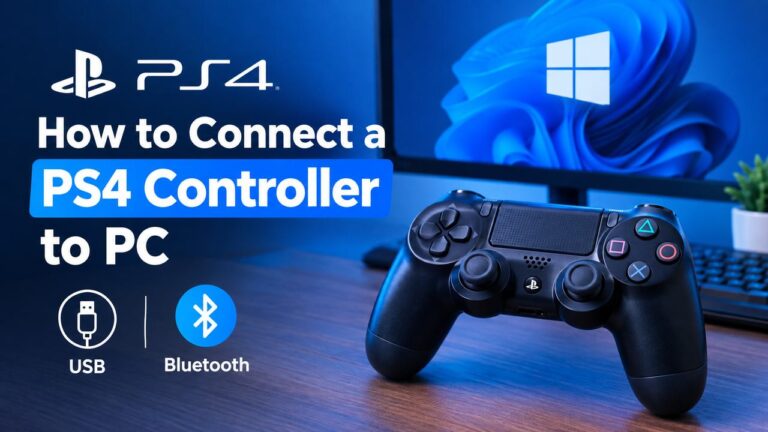
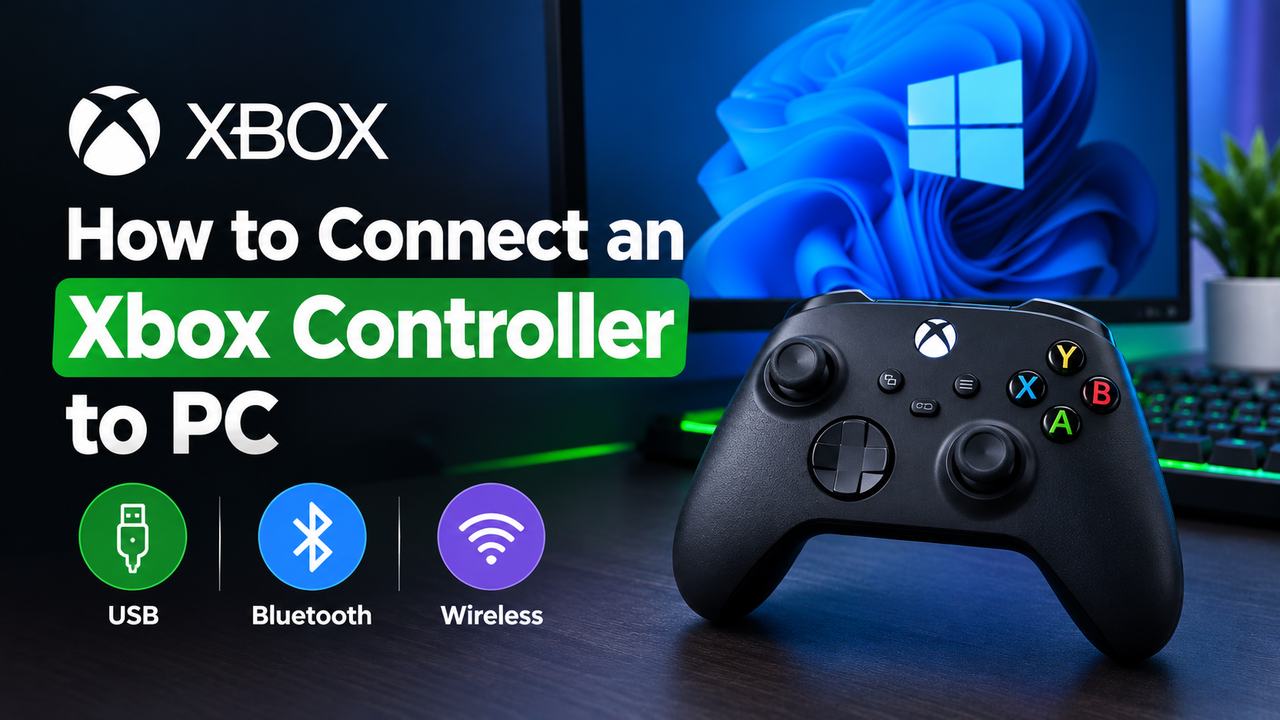
Yes, Xbox controllers work with Windows PCs, and most connect in under a minute. You can plug one in with a USB cable, pair it over Bluetooth, or use Microsoft’s Xbox Wireless Adapter. Newer controllers support all three, while older ones need a cable or a receiver.
This guide explains how to connect an Xbox controller to PC, pair it, use it in games, and fix the problems that stop it from working. It also covers the Xbox One, Xbox 360, Series X/S and Elite models separately.
Can You Connect an Xbox Controller to a PC?
Yes. Windows 10 and 11 recognize Xbox controllers natively, so you rarely need extra software. Xbox One, Series X/S and Elite controllers work over USB, Bluetooth and the Xbox Wireless Adapter, depending on the model. Xbox 360 controllers work too, with a few differences covered below.
What You Need to Connect an Xbox Controller to PC
Xbox Wireless Controller
This is the name for the modern Xbox One and Series controllers. Later revisions include Bluetooth, while the very first Xbox One controller does not.
USB Cable
Xbox One controllers use micro USB, and Series X/S controllers use USB-C. The cable must carry data, not just power.
Bluetooth
Bluetooth works only on controllers that include it. If yours does not, use a cable or the adapter.
Xbox Wireless Adapter
This small USB dongle uses Xbox Wireless, which is a different technology from Bluetooth. It gives a more direct link and supports several controllers at once.
How to Connect an Xbox Controller to PC With USB
Wired is the fastest way to hook up an Xbox controller to your PC.
Step 1: Connect the Controller
Plug the cable into the controller, then into a USB port on your PC.
Step 2: Let Windows Detect the Controller
Windows installs the driver automatically. The Xbox button lights up once it is ready.
Step 3: Check That Windows Recognizes the Controller
Type “Set up USB game controllers” into the Windows search bar and open it. The controller appears in the list.
Step 4: Test the Controller
Select it, click Properties, and press buttons. The on-screen indicators should react.
If Windows Doesn’t Detect the Controller
See the troubleshooting section below.
How to Connect an Xbox Controller to PC With Bluetooth
Step 1: Turn On Bluetooth in Windows
Open Settings, choose Bluetooth & devices, and switch Bluetooth on.
Step 2: Turn On the Xbox Controller
Press the Xbox button until it lights up.
Step 3: Put the Controller Into Pairing Mode
Hold the small pairing button on the top edge, near the USB port, for about three seconds. The Xbox button flashes quickly.
Step 4: Open Bluetooth Settings
In Windows, click Add device, then choose Bluetooth.
Step 5: Select the Xbox Wireless Controller
Pick it from the list of nearby devices.
Step 6: Complete the Pairing
Wait for the status to read Connected. The Xbox button stops flashing and stays lit.
Step 7: Test the Controller
Use the game controller panel or open a game to confirm input.
How to Pair an Xbox Controller to PC
Pairing depends on the connection type. Bluetooth pairing uses Windows settings, as shown above. Xbox Wireless pairing uses the adapter: plug it in, press its button, then hold the controller’s pairing button. A wired connection needs no pairing at all.
After the first pairing, pressing the Xbox button reconnects the controller automatically.
How to Connect an Xbox One Controller to PC
Xbox One Controller With USB
Plug in a micro USB cable. This works on every Xbox One controller.
Xbox One Controller With Bluetooth
Only revisions with Bluetooth support it. Follow the Bluetooth steps above.
Xbox One Controller With Xbox Wireless Adapter
This works on all Xbox One controllers, including the original that lacks Bluetooth.
Xbox One Controller Not Connecting to PC
Try a different cable first, then re-pair the controller. If it still fails, follow the fixes below.
How to Connect an Xbox 360 Controller to PC
Can an Xbox 360 Controller Work on PC?
Yes. Windows supports it without extra setup.
How to Connect a Wired Xbox 360 Controller to PC
Plug the USB cable into your PC. Windows installs the driver automatically.
How to Connect a Wireless Xbox 360 Controller to PC
Xbox 360 controllers do not use Bluetooth. You need a wireless receiver made for PC, then you press the sync buttons on the receiver and the controller.
Do You Need an Xbox 360 Wireless Receiver?
Yes, for wireless play. Without one, use a USB cable if your controller has one, or switch to a newer controller.
Xbox 360 Controller Not Working on PC
Check the cable, try another port, and reconnect the receiver. Older third-party receivers may need drivers from the manufacturer.
How to Connect an Xbox Series X/S Controller to PC
Connect With USB
Use a USB-C cable. Windows detects it instantly.
Connect With Bluetooth
Series controllers include Bluetooth. Use the same pairing steps as above.
Connect With Xbox Wireless
Plug in the adapter, press its button, then hold the controller’s pairing button.
Xbox Series Controller Not Connecting
Restart the controller by holding the Xbox button for six seconds, then pair again.
How to Connect an Xbox Elite Controller to PC
Connect Xbox Elite Controller With USB
Use the cable that came with it. The Elite Series 2 uses USB-C.
Connect Xbox Elite Controller Wirelessly
The Elite Series 2 supports Bluetooth. The original Elite needs a cable or the Xbox Wireless Adapter.
Xbox Elite Controller Not Working on PC
Reconnect it, then reset any custom profile by switching it to the default profile.
How to Use an Xbox Controller on PC Games
How to Use an Xbox Controller With Steam
Steam detects Xbox controllers automatically. Open Settings, then Controller, to remap buttons or adjust stick sensitivity.
How to Use an Xbox Controller With PC Games
Most Windows games support Xbox input natively, so they work as soon as Windows detects the controller.
What If a Game Doesn’t Detect the Controller?
Make sure the controller is connected before you launch the game. If it still fails, restart the game and check its in-game controller settings.
Why Xbox Button Prompts Usually Appear on PC
Most PC games are built around Xbox controllers, so the on-screen icons match your buttons.
Xbox Controller Not Connecting to PC? Try These Fixes
1. Check the USB Cable
Use a cable you know carries data.
2. Try Another USB Port
Plug directly into the PC, not a hub.
3. Check Bluetooth
Make sure Bluetooth is on and Airplane mode is off.
4. Re-Pair the Controller
Hold the pairing button until the Xbox button flashes fast.
5. Restart the Controller
Hold the Xbox button for about six seconds, then turn it on again.
6. Restart Windows
It clears stuck USB and Bluetooth services.
7. Remove the Controller and Pair It Again
Delete it in Bluetooth settings, then pair it fresh.
8. Check Windows Device Detection
Open Device Manager and look for an unknown device or a yellow warning icon.
9. Check Controller and Bluetooth Drivers
Outdated Bluetooth or USB drivers can stop Windows from detecting the controller. Update them through Device Manager or Windows Update.
Xbox Controller Connected to PC but Not Working
Windows Detects the Controller but the Game Doesn’t
The game may not support controllers. Check its settings menu.
Steam Detects the Controller but the Game Doesn’t
Turn off Steam Input for that game in its properties, or the reverse.
Controller Works in Windows but Not in a Game
Restart the game with the controller already connected.
Buttons Don’t Respond Correctly
Recalibrate the controller in the Windows game controller panel.
Analog Sticks Aren’t Working
Recalibrate, and check for stick drift.
Controller Keeps Disconnecting
Replace the batteries and move closer to the PC. In Device Manager, open your Bluetooth adapter’s properties and turn off the option that lets Windows power it down to save energy.
How to Update an Xbox Controller on PC
Firmware updates fix connection bugs and add features. To check for one, install the Xbox Accessories app from the Microsoft Store. Connect the controller by USB, open the app, and select the controller. It tells you whether an update is available.
If the update fails, try a different cable and port, and keep the controller connected until it finishes. Note that firmware updates are separate from Windows drivers.
How to Check Xbox Controller Battery on PC
Checking Battery Status in Windows
Open Bluetooth & devices in Settings. Connected controllers show a battery percentage.
Checking Battery Status Through Xbox/Controller Software
The Xbox Accessories app and the Xbox Game Bar (Windows key + G) also show battery level.
Why Battery Information May Not Appear
Wired connections and some adapters do not report battery status.
How to Turn Off an Xbox Controller on PC
Hold the Xbox button for about six seconds. An idle controller also shuts itself off after a few minutes. A wired controller stays powered as long as the cable is connected.
How to Disconnect an Xbox Controller From PC
Disconnect a Bluetooth Xbox Controller
Turn the controller off or remove it from Bluetooth settings.
Disconnect a USB Xbox Controller
Unplug the cable.
Remove the Controller From Windows Bluetooth Devices
Open Bluetooth & devices, select the controller, and click Remove device.
Turn Off the Controller
Hold the Xbox button for six seconds.
Xbox Controller Bluetooth vs USB vs Xbox Wireless
| Connection | Cable | Bluetooth Required | Wireless | Best Suited For |
|---|---|---|---|---|
| USB | Yes | No | No | Wired play |
| Bluetooth | No | Yes | Yes | Compatible wireless setups |
| Xbox Wireless | No | No | Yes | Adapter-based wireless setups |
USB is simplest and never runs out of battery. Bluetooth needs no extra hardware but depends on your PC’s adapter. Xbox Wireless needs a dongle and offers the most direct link.
Xbox Controller Drivers on Windows
Windows handles compatible Xbox controllers through its own driver system. When a controller fails to connect, an outdated or corrupted driver is sometimes the cause. Updating Windows and checking Device Manager are reasonable first steps.
Remember that controller firmware and Windows drivers are different things. Firmware lives on the controller, while drivers live on your PC. Need help with Windows driver problems? See our detailed guide to updating drivers on Windows.
Frequently Asked Questions
Can you use an Xbox controller on PC?
Yes. Xbox controllers work with Windows over USB, Bluetooth or Xbox Wireless.
Do Xbox controllers work on PC?
Yes, and most games support them natively.
How do you connect an Xbox controller to a PC?
Plug in a USB cable, or hold the pairing button and add it in Bluetooth settings.
How do you pair an Xbox controller to PC?
Hold the pairing button until the Xbox button flashes, then select it in Windows Bluetooth settings.
Can you use an Xbox One or Xbox 360 controller on PC?
Yes. Both work, though the 360 needs a wireless receiver for wireless play.
Why won’t my Xbox controller connect to my PC?
Common causes are a charge-only cable, Bluetooth being off, or outdated drivers.
Why does my Xbox controller keep disconnecting from my PC?
Low batteries, distance and Bluetooth power saving are the usual causes.
How do I update an Xbox controller or check its battery on PC?
Use the Xbox Accessories app for updates. Battery level appears in Bluetooth settings and the app.
Final Takeaway
You can connect an Xbox controller to PC with USB, Bluetooth or Xbox Wireless. Pick the one your controller supports. When something fails, work through the chain in order: connection, Windows detection, game detection, then controller input. Most problems appear at the first two steps.
If Windows still cannot see your controller, outdated drivers may be the reason. Check our Windows driver guide for the fix.
Related Post: How to Connect a PS5 Controller to PC