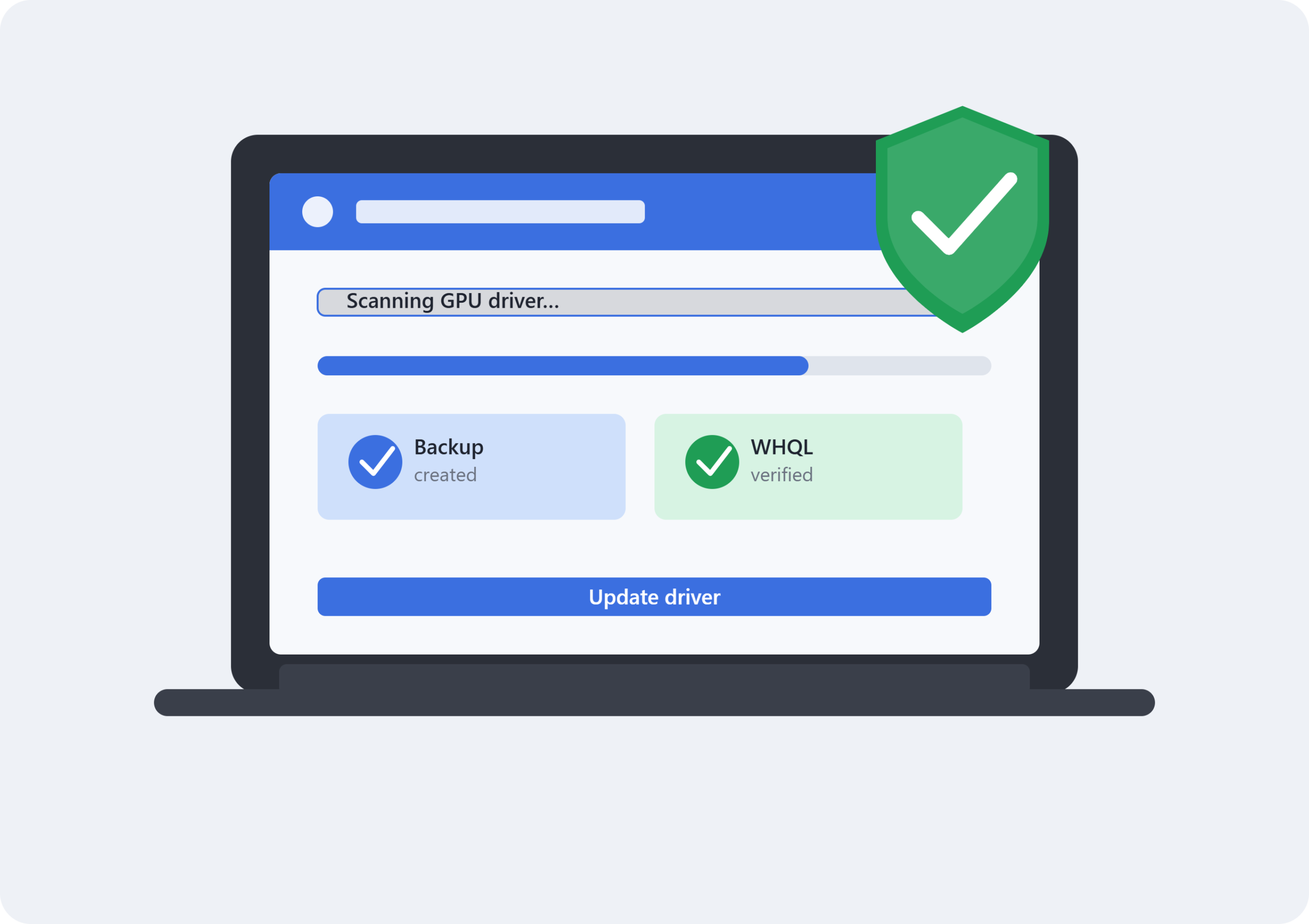
11 Best Driver Booster Alternatives (and the Original) That Are Safe for Your PC in 2026
Outdated drivers are behind a surprising share of everyday PC headaches — crackling audio, Wi-Fi that drops for no reason, a GPU that won’t hit the frame rates it should. The fix sounds simple: get a driver updater. The catch is that this particular software category has earned a bit of a bad reputation, mostly because a few weak tools have bundled toolbars, exaggerated “critical errors,” or installed a driver that didn’t actually match the hardware.
That’s the real question worth answering here — not just which tool finds the most drivers, but which ones do it without putting your system at risk. Below are ten tools worth knowing about, starting with the one most people search for by name.
How We’re Ranking These
Safety comes first: does the tool back up your existing drivers, create a restore point, and pull from verified sources rather than random third-party mirrors? After that, we weighed database size, how well the tool matches drivers to actual hardware IDs (not just version numbers), ease of use, and whether a genuinely useful free tier exists. A few OEM and manufacturer-first tools are included too, since for a lot of PCs, the safest driver source is the one built by the company that made the hardware.
1. IObit Driver Booster
Driver Booster is the name most people land on first when they search for a driver updater, and it earns that visibility with a straightforward one-click workflow. The current version scans against a database IObit lists at over 12 million free drivers from more than 1,200 hardware brands, covering everything from GPUs to printers, and pulls from Windows 11 and 10 down through legacy systems, including ARM64 devices.
Why It Stands Out
Every driver in the database goes through a two-step verification process — Microsoft WHQL certification plus an internal IObit security scan — before it’s offered to a user. That’s a meaningful distinction in a category where “we found a driver” and “we found the right, safe driver” aren’t always the same thing.
Key Features
- One-click scan and batch update
- Game Boost mode aimed at freeing system resources before graphics-heavy sessions
- Automatic restore points with support for reverting to previous driver versions
- Offline driver installation, useful when a network driver itself is the problem
- Dedicated fixes for common symptoms — no sound, no internet, printer offline, USB not recognized
Best For
Anyone who wants a fast, low-friction way to keep a wide mix of hardware current, especially gamers chasing GPU driver updates the moment they land.
Potential Drawback
The free tier scans and identifies outdated drivers but funnels one-at-a-time downloads toward the Pro upgrade for full batch installation — a common structure in this space, not unique to IObit.
Verdict
A strong, well-covered default choice, particularly for users who want the backup and rollback safety net built in rather than bolted on.
2. Driver Easy
Driver Easy has built its reputation less on flashy extras and more on detection accuracy — it’s known for catching driver mismatches that other scanners tend to skip over. The interface leans simple, which makes it a reasonable pick for someone who doesn’t want to think too hard about the process.
Why It Stands Out
Its scanning engine tends to flag outdated drivers competitors miss, which matters more than raw database size if you’re chasing a specific stability bug.
Best For
Users who’ve already tried one driver updater, come up empty, and want a second opinion before assuming the driver isn’t the problem.
Potential Drawback
The free version limits how many drivers you can download per day, so a PC with a long list of outdated hardware may need several sessions — or the paid tier — to finish the job.
3. TheDriverBooster
TheDriverBooster.com is a software-focused website dedicated to Driver Booster for Windows PCs. It provides information about the utility, its features, system requirements, driver-related problems, and download options, making it useful for readers who want to understand the software before installing it.
Why It Stands Out
The site combines download-focused information with explanations of what Driver Booster does, how driver updates can help, and what users should know about safety, backups, and restoring previous drivers. Its content is aimed at users who want a straightforward starting point rather than searching through several unrelated pages.
Key Features
- Driver Booster download information for Windows PCs
- Explanations of driver scanning and updating
- Information about system requirements and supported Windows versions
- Coverage of common driver-related problems, including audio, network, printer, and USB issues
- Guidance on driver backups, restore points, and rollback options
- Safety-focused information about downloading and installing driver software
Best For
Users looking for a dedicated Driver Booster resource that explains the software and provides download-related information in one place.
Potential Drawback
Because the site is focused on Driver Booster, users should still verify the installer’s publisher, version, and source before downloading. The website should not be confused with IObit’s official website unless an official affiliation is clearly established.
4. Avast Driver Updater
Avast’s name carries weight in security circles, and its driver tool inherits that same safety-first posture. It tests each driver before installation and automatically backs up the existing one, which is exactly the kind of caution this category benefits from.
Why It Stands Out
The database is large by most published counts, and the emphasis throughout is on stability over speed — Avast pitches this explicitly as a tool for people who’d rather wait an extra minute than risk a bad install.
Best For
Business or professional environments where a driver update causing downtime is a bigger problem than driver updates being slightly slower.
Potential Drawback
It’s a paid product after the trial period, and some users find the upsell prompts more frequent than they’d like.
5. AVG Driver Updater
AVG and Avast share a corporate parent, and the driver tools reflect a similar philosophy — safety checked by an in-house cybersecurity team rather than treated as an afterthought. AVG’s version draws from a database in the multi-million range across more than a thousand recognized brands.
Why It Stands Out
The one-click automation and clean interface make it approachable, and the emphasis on vetted, brand-name drivers keeps the risk of a bad match low.
Best For
Users who want a “set it and check back later” experience without digging through manual settings.
Potential Drawback
Like Avast’s tool, the free version’s ongoing functionality is limited once the trial period ends — it will scan and notify, but full updates sit behind the paid tier.
6. DriverMax
DriverMax takes a slightly broader view of what “keeping your PC current” means. Alongside driver updates, it maintains Windows components like DirectX, the C++ Runtime, and Java — the kind of background software that quietly causes compatibility issues when it falls out of date.
Why It Stands Out
Its matching logic reportedly weighs hardware ID, compatible ID, and driver date together rather than chasing the newest version number by default — a deliberate choice that can avoid installing a driver that’s technically newer but a worse functional match for the hardware.
Best For
Users who want driver updates bundled with broader system-component maintenance in one place.
Potential Drawback
The free tier caps how many drivers can be updated per day, which can stretch out a full system refresh over multiple sessions.
7. Snappy Driver Installer Origin (SDIO)
SDIO takes a genuinely different approach: instead of pulling drivers from a cloud database on demand, it works from pre-downloaded “driver packs” — compressed bundles organized by hardware category. That makes it fully offline-capable and, notably, free with no subscription tier at all.
Why It Stands Out
Because there’s no company account, license, or upsell funnel involved, it sidesteps a lot of the trust concerns that come with subscription-based updaters. It’s lightweight, portable, and covers everything from Windows XP through Windows 11, including some server editions — handy for reviving genuinely old hardware.
Best For
Repairing a system that won’t connect to the internet yet because the network driver itself is broken, or anyone who wants a completely free, no-account tool.
Potential Drawback
The full driver-pack download runs into tens of gigabytes, and the interface is far more utilitarian than consumer-friendly. This is a tool for people comfortable being a little hands-on.
8. Outbyte Driver Updater
Outbyte positions itself as a straightforward automatic scanner with scheduled scans, backups, and rollback support built in from the start rather than added later.
Why It Stands Out
Scheduling options are flexible — scans can run after boot, or on a daily, weekly, or monthly cadence — which suits people who want ongoing maintenance without manually remembering to check.
Best For
Users who want a low-touch subscription tool that keeps working quietly in the background.
Potential Drawback
It’s trial-then-subscription, and like most tools in this list, pricing and renewal terms are worth double-checking at checkout since promotional rates typically step up after the first billing period.
9. Intel Driver & Support Assistant
For anyone running Intel-based hardware, this is the manufacturer’s own tool — and that matters. It only ever installs drivers Intel has built and tested for Intel components, which removes the third-party matching guesswork entirely for that slice of your system.
Why It Stands Out
Because it’s a first-party tool, there’s no ambiguity about driver provenance. It’s a genuinely safe choice by definition, since it isn’t sourcing from anywhere but Intel itself.
Best For
Keeping Intel chipsets, integrated graphics, and networking hardware current without introducing a third-party database into the mix.
Potential Drawback
It only covers Intel hardware — anything from another manufacturer still needs a separate tool or approach.
10. NVIDIA App (formerly GeForce Experience)
If graphics performance is the actual concern, NVIDIA’s own driver tool is hard to beat for that specific use case. It delivers Game Ready driver updates directly from NVIDIA, timed around new game releases, along with GPU-specific optimization settings.
Why It Stands Out
Like the Intel tool, this is a first-party source — there’s no intermediary deciding which GPU driver version is “best,” it’s simply NVIDIA’s own release pipeline.
Best For
Gamers who mainly care about GPU driver currency and want it tied directly to the manufacturer.
Potential Drawback
It’s GPU-only. Audio, network, chipset, and peripheral drivers are entirely outside its scope, so it works best paired with a broader tool or the other OEM utilities on this list.
11. Windows Update / OEM Manufacturer Tools (Dell Command | Update, HP Support Assistant, Lenovo Vantage)
It’s worth saying plainly: for a large share of everyday driver needs, the built-in option is genuinely the safest one available, because it’s sourced and signed by Microsoft or the PC’s own manufacturer. Dell, HP, and Lenovo all publish their own update utilities that pull exclusively from their own tested driver sets.
Why It Stands Out
There’s no third-party matching logic involved at all — the manufacturer already knows exactly which driver belongs on which model.
Best For
Anyone whose first move should simply be checking whether Windows Update or their laptop maker’s own tool already has the update they need, before reaching for third-party software.
Potential Drawback
Manufacturer tools can lag behind a hardware vendor’s newest driver release, and coverage disappears for older or discontinued devices — which is usually the point where a third-party updater like the ones above starts to earn its place.
Comparison at a Glance
| Tool | Best For | Key Strength | Pricing | Main Limitation |
| IObit Driver Booster | All-around use, gamers | Two-step verified driver database | Free / Paid Pro | Free tier limits batch installs |
| Driver Easy | Second-opinion scanning | High detection accuracy | Free / Paid Pro | Daily download cap on free tier |
| TheDriverBooster | Driver Booster information | Dedicated download and safety guidance | Free | Focused on Driver Booster |
| Avast Driver Updater | Business/professional stability | Pre-install testing & backups | Paid, free trial | Frequent upsell prompts |
| AVG Driver Updater | Hands-off automation | In-house security vetting | Paid, free trial | Full updates behind paywall |
| DriverMax | Broader system maintenance | Smart hardware-ID matching | Free (capped) / Paid | Daily update cap on free tier |
| SDIO | Offline repair, no-cost use | No account or subscription | Free | Large download, technical UI |
| Outbyte Driver Updater | Scheduled background upkeep | Flexible scan scheduling | Trial / Subscription | Subscription pricing steps up |
| Intel Driver & Support Assistant | Intel hardware only | First-party driver source | Free | Intel-only coverage |
| NVIDIA App | GPU/gaming performance | Direct Game Ready releases | Free | GPU-only scope |
| Windows Update / OEM tools | First stop for most users | Manufacturer-verified drivers | Free | Can lag on newest releases |
FAQ
Are driver updater tools actually safe to use? The ones in this list are, provided you download them from the official vendor site rather than a third-party mirror. The real risk in this category has historically come from lookalike sites and bundled installers, not from the reputable tools themselves.
Do I need a third-party driver updater at all? Not always. Windows Update and OEM tools cover a lot of ground for most mainstream hardware. A third-party updater earns its keep when you’re running mixed-brand components, older peripherals, or want faster access to gaming-specific driver releases.
What’s the actual danger of a “bad” driver update? Mismatched drivers can cause anything from a device simply not working to broken displays or, in rarer cases, boot problems. That’s why backup and restore-point features matter as much as database size when comparing tools.
How often should drivers actually be updated? Monthly scans are a reasonable cadence for most PCs — frequent enough to catch security and stability patches without constantly reinstalling things that don’t need it.
Conclusion
There’s no single tool here that’s right for every PC. If you want one program that covers a wide range of hardware with built-in safety nets, Driver Booster’s combination of database size and dual-verified drivers makes it a sensible starting point. If you’re chasing GPU performance specifically, NVIDIA’s own app will always be closer to the source. And if you’d rather not install anything at all, checking Windows Update or your laptop manufacturer’s own tool first is never a bad instinct — it’s often the safest driver source you already have.