How to Go Live on Twitch on PC: A Complete Streamer’s Setup Guide
Getting ready to hit that “Start Streaming” button for the first time feels like a mix of excitement and dread. I remember my own first stream ended in a frozen screen about four minutes in, and the culprit turned out to be something almost embarrassingly simple. So before we get into broadcast software or scene layouts, let’s talk about the one step almost every beginner skips: you need to update drivers on PC before anything else works reliably.
Why Driver Updates Matter More Than You Think
Streaming asks a lot from your machine. You’re running a game, encoding video in real time, and pushing that data out over the internet, all at once. Outdated graphics drivers are one of the most common reasons streams stutter, crash, or drop frames without any obvious explanation.
NVENC and Encoding Optimizations
NVIDIA and AMD both release driver updates regularly, and these aren’t just cosmetic patches. They often include specific optimizations for encoding technologies like NVENC, which is what lets your graphics card handle video compression instead of dumping all that work onto your CPU. If you haven’t touched your drivers in a few months, that’s usually step one when troubleshooting a shaky first broadcast.
How to Update Drivers on PC
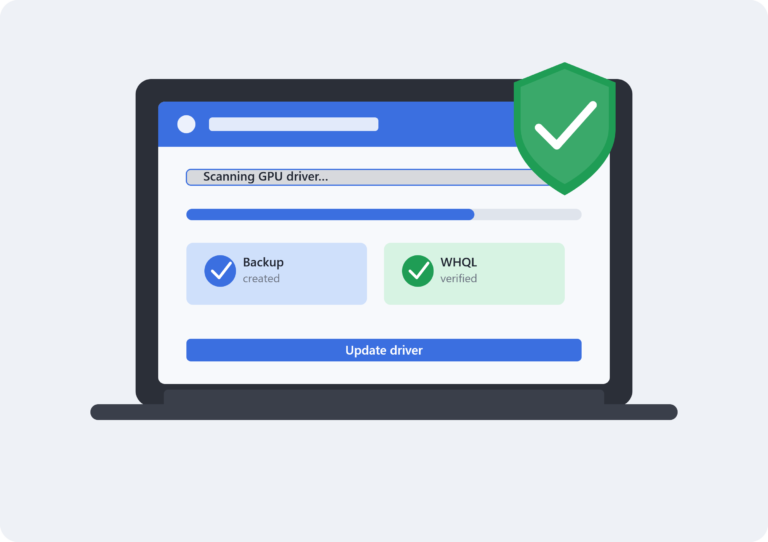
To update drivers on PC, open GeForce Experience if you have an NVIDIA card, or AMD Software: Adrenalin Edition for AMD. Both will scan your system and flag anything out of date. Windows Update also handles some driver maintenance, though it tends to lag behind the manufacturer’s own releases, so don’t rely on it exclusively.
Setting Up Your Account on the Twitch Platform
Once your hardware is in good shape, the next stop is the Twitch platform itself. Head to twitch.tv and create an account if you don’t already have one. Twitch will ask you to verify your email and phone number, and honestly, don’t skip the phone verification. It unlocks features you’ll want later, like the ability to run polls or set channel points.
Finding Your Stream Key
From your dashboard, go to Creator Dashboard, then Settings, then Stream. This is where you’ll find your Stream Key, a private string of characters that connects your broadcasting software to your channel. Treat this key like a password. Anyone who gets hold of it could hijack your stream, so never paste it into a public chat or share a screenshot that includes it.
Choosing and Installing Broadcasting Software
You can’t stream directly from a browser tab, at least not with any real quality control. You’ll need dedicated software that captures your screen or game and encodes it for upload. The two names you’ll hear most often are OBS Studio and Streamlabs.
OBS Studio vs. Streamlabs
OBS Studio is free, open source, and about as reliable as software gets in this space. Streamlabs builds on the same foundation but adds a friendlier interface with built-in alerts and widgets, which can be nice if you’re not interested in tinkering with plugins. I started on OBS and never felt a strong pull to switch, but plenty of streamers swear by Streamlabs for its simplicity.
Download whichever one appeals to you, then run through the setup wizard. Most versions will auto-detect your hardware and suggest a bitrate and resolution. Trust the suggestions at first. You can always tweak them once you understand how your specific setup performs.
Connecting Your Stream Key
Inside your broadcasting software, look for Settings, then Stream. Choose Twitch as your service, then paste in the stream key you copied earlier. Some versions let you log in directly with your Twitch account instead, which handles the key exchange automatically and is arguably the safer option for beginners.
Building Your First Scene
A scene is just a saved layout of what viewers see. At minimum, you’ll want a game capture source and maybe a webcam feed if you’re comfortable being on camera. Right click in the Sources panel, add a Game Capture, and select your game window. If you’re adding a webcam, add a Video Capture Device and resize it to sit in a corner.
Don’t overthink this part for your first stream. Elaborate overlays and animated alerts are things you can add later once you know whether streaming is something you’ll stick with. A clean, simple layout communicates more professionalism than a cluttered one anyway.
Testing Before You Go Live
This is the step people skip and immediately regret. Most broadcasting software includes a test recording feature that lets you check your audio levels, frame rate, and video quality without actually broadcasting to the Twitch platform. Watch the recording back. Listen for background noise, check that your microphone isn’t clipping, and confirm your game audio isn’t drowning out your voice.
Resolution and Frame Rate Reality Check
If you notice dropped frames during this test, that’s often another sign you need to update drivers on PC or lower your output resolution. Streaming at 1080p60 sounds appealing, but if your internet upload speed or hardware can’t sustain it, 720p60 will look and perform far better than a 1080p stream that constantly buffers.
Hitting Start Streaming
When everything checks out, click Start Streaming in your software. Give it a few seconds, then check your Twitch channel page in a browser to confirm you’re actually live. It’s a small thing, but that first glance at “LIVE” next to your channel name never really stops feeling good.
Common First-Stream Mistakes
A few patterns show up again and again with new streamers. Forgetting to mute browser tab notifications is a classic one, especially if a personal message pops up mid-stream. Not setting a stream title or category is another, since it makes you nearly invisible in Twitch’s directory. And running a stream test on the actual Twitch platform instead of using local recording tools means your very first impression on any viewers who wander in is a technical hiccup.
Final Thoughts
None of this requires expensive equipment or years of experience. A stable internet connection, a PC with reasonably current drivers, and free broadcasting software will get you further than most people expect. The technical setup is a one-time investment. After your first successful stream, most of this becomes muscle memory, and you’ll spend far more energy thinking about content than configuration.